
How to Add Your Business to Google Maps (2027 Step-by-Step Guide)
 By Ugene Gumus
Nov 23, 2026
Updated Nov 24, 2026 5 min read
Quick answer: To add your business to Google Maps, create a free Google Business Profile at business.google.com/add, enter your business name, category, location or service area, phone and website, then complete the verification method Google offers. Video verification is now the most common method, and Google says its review can take up to five business days.
Key takeaways
- Adding a business to Google Maps is free and happens through a Google Business Profile.
- Your listing stays hidden until verification is complete.
- Most new profiles now verify with a short, continuous video.
- Service-area businesses can hide their home address.
- A complete profile with reviews and photos ranks better in the map results.
When someone nearby searches for what you sell, Google shows a map with three businesses at the top. If you are not on that map, you are invisible to a huge share of local customers. The good news? You can add your business to Google Maps for free in about 15 minutes, plus verification time.
This guide walks through every step for 2027, including the video verification that trips up so many owners.
Before you add your business to Google Maps
First, make sure your business qualifies. Google requires that a business makes in-person contact with customers during its stated hours. That can happen at your location or at the customer’s place.
- Storefronts such as shops, restaurants and clinics list their street address.
- Service-area businesses such as plumbers, cleaners and mobile mechanics can hide their address and list the areas they serve.
- Online-only businesses do not qualify for a Maps listing.
Also, avoid a P.O. Box or a virtual office. Google’s policies do not allow them, and profiles that use them risk suspension.
How to add a business to Google Maps in 5 steps
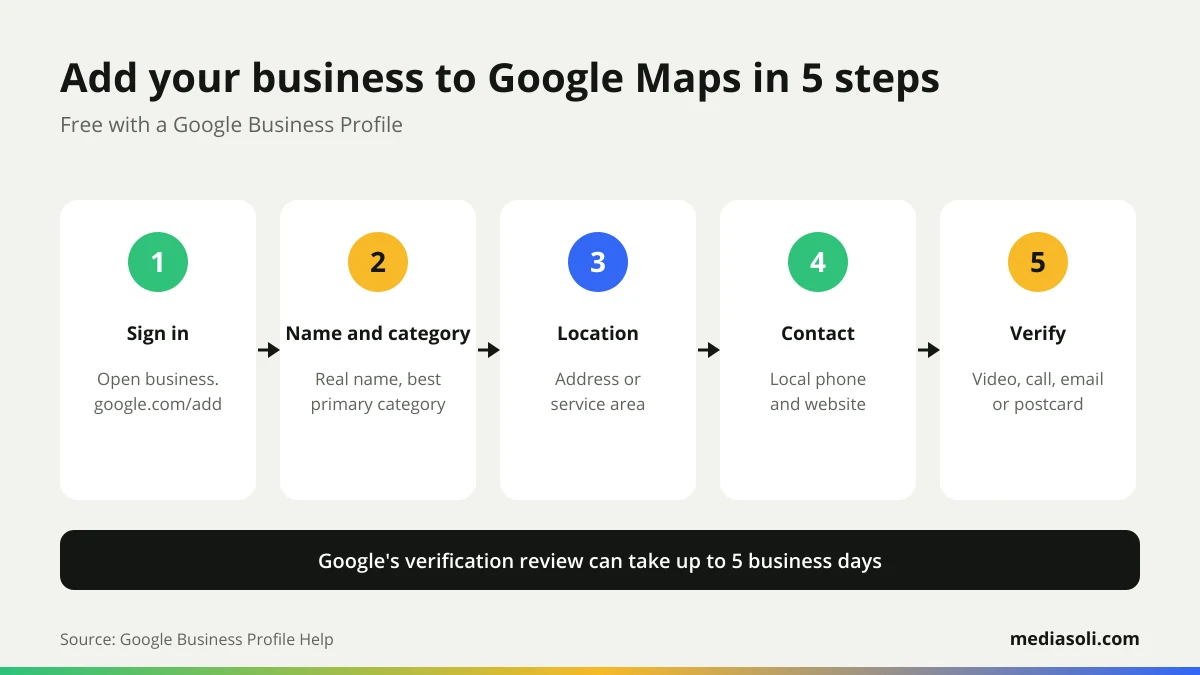
Step 1: Sign in and start your profile
To begin with, sign in with a Google account you will keep for years. Ideally, use a business account rather than a personal Gmail that a past employee controls. Then go to business.google.com/add and select the option to add your business.
Step 2: Enter your name and category
At this point, type your real business name exactly as it appears on your signage. Do not add keywords or city names, because that breaks Google’s guidelines. Next, choose the primary category that best describes your main service. You can add secondary categories later.
Step 3: Add your location or service area
If customers visit you, enter your address and place the pin on the right spot. Otherwise, choose the option to hide your address and list the cities you serve, such as Waterloo, Kitchener and Cambridge.
Step 4: Add your phone number and website
Of course, use a local phone number that someone answers. After that, add your website so people can learn more and contact you. Make sure these details match your website exactly.
Step 5: Verify your business
Finally, Google asks you to verify. You cannot choose the method, because Google picks it based on your business. Common options include video recording, live video call, phone or text, email and postcard.
How to pass video verification
Video verification has become the most common method for new profiles. It sounds stressful, yet it is simple if you plan ahead. Google wants one continuous, unedited clip that proves your business is real and that you manage it.
- Show where you are. Start outside with street signs or nearby businesses in view.
- Capture your signage or branded vehicle. Permanent signs help a lot.
- Film the inside or your tools. For instance, show equipment, stock or your workspace.
- Prove management access. Unlock the door, open the register or show business documents.
Meanwhile, keep the camera rolling the whole time. If you stop and restart, Google may reject the clip. Above all, make sure your address on the profile matches what the video shows.
After you add your business to Google Maps
Verification gets you onto the map, but it does not get you to the top. So the next step is to complete your profile and keep it active.
- Upload real photos of your team, work and location.
- Write a clear description that names your main services.
- Fill in hours, services, products and attributes.
- Ask happy customers for reviews, then reply to every one.
- Post updates or offers at least once a month.
To make reviews easy, create a short link and QR code with our Google review link generator. Then follow our Google Business Profile checklist to fill every field. For tips on asking at the right moment, read how to get more Google reviews.
Connect your profile to your website
Google trusts businesses that look the same everywhere online. Therefore, put the same name, address and phone number on your website footer and contact page. You can also add LocalBusiness schema, which helps Google and AI assistants read your details. Our free local business schema generator builds the code for you.
Frequently asked questions
How long does it take to add a business to Google Maps?
Setting up the profile takes about 15 minutes. After that, Google says verification review can take up to five business days, and sometimes longer during busy periods.
Is it free to add my business to Google Maps?
Yes. A Google Business Profile is completely free. Be careful with anyone who charges you just to list your business, because Google never charges for it.
Can I add a business to Google Maps without an address?
Yes, if you serve customers at their location. In that case, choose a service area and hide your address. You still need a real address for verification, but customers will not see it.
Why can’t I find my business on Google Maps?
Usually, Google has not finished verifying the profile yet, or it has suspended it. Search for your exact business name on Maps first, then check the status in your Business Profile dashboard.
Want it done right the first time?
Mediasoli sets up and optimizes Google Business Profiles for businesses across Waterloo Region, so you show up in the map results and in AI answers. If you are weighing outside help, see our guide on choosing a local SEO partner, or start a project today.
Sources

Ugene builds websites and helps businesses get found on Google and in AI answers. He has worked with 30+ brands in Canada, from local shops to the Ontario Government.
Connect on LinkedInKeep reading

Best SEO Agencies in Kitchener-Waterloo (2027 Guide)
Compare the best SEO agencies in Kitchener-Waterloo for 2027: what each one does best, what SEO costs in Waterloo Region and how…
Google Business Profile Suspended? How to Get It Back (2027)
Google Business Profile suspended? Learn why it happens, how to appeal step by step, what evidence to send and how to stop…

How Much Does SEO Cost in Canada? (2027 Pricing Guide)
What is the real SEO cost in Canada? See 2027 monthly retainer ranges, project and hourly pricing, what drives the price, and…
Have a project in mind?
Tell us where you want to be found, and we will map the way there.